
How to invite a contact to your B2B shop
Summary
This guide explains how to create a contact and invite a partner or customer to access your Kombiner B2B shop.
Inviting contacts ensures they receive secure access linked to the correct company.
When should I use this?
Use this guide when:
- You want to give a retailer or partner access to your B2B shop
- A customer needs login access
- You are onboarding a new company
How it works
In the sidebar, click Contacts
On the Contacts page, click the button Create contact

Fill in the following fields:
- First name
- Last name
- Phone (optional)
- Company (select the company the user should be assigned to)
- Click “Save Contact”
- On the unique user page, click the button “Invite to shop”
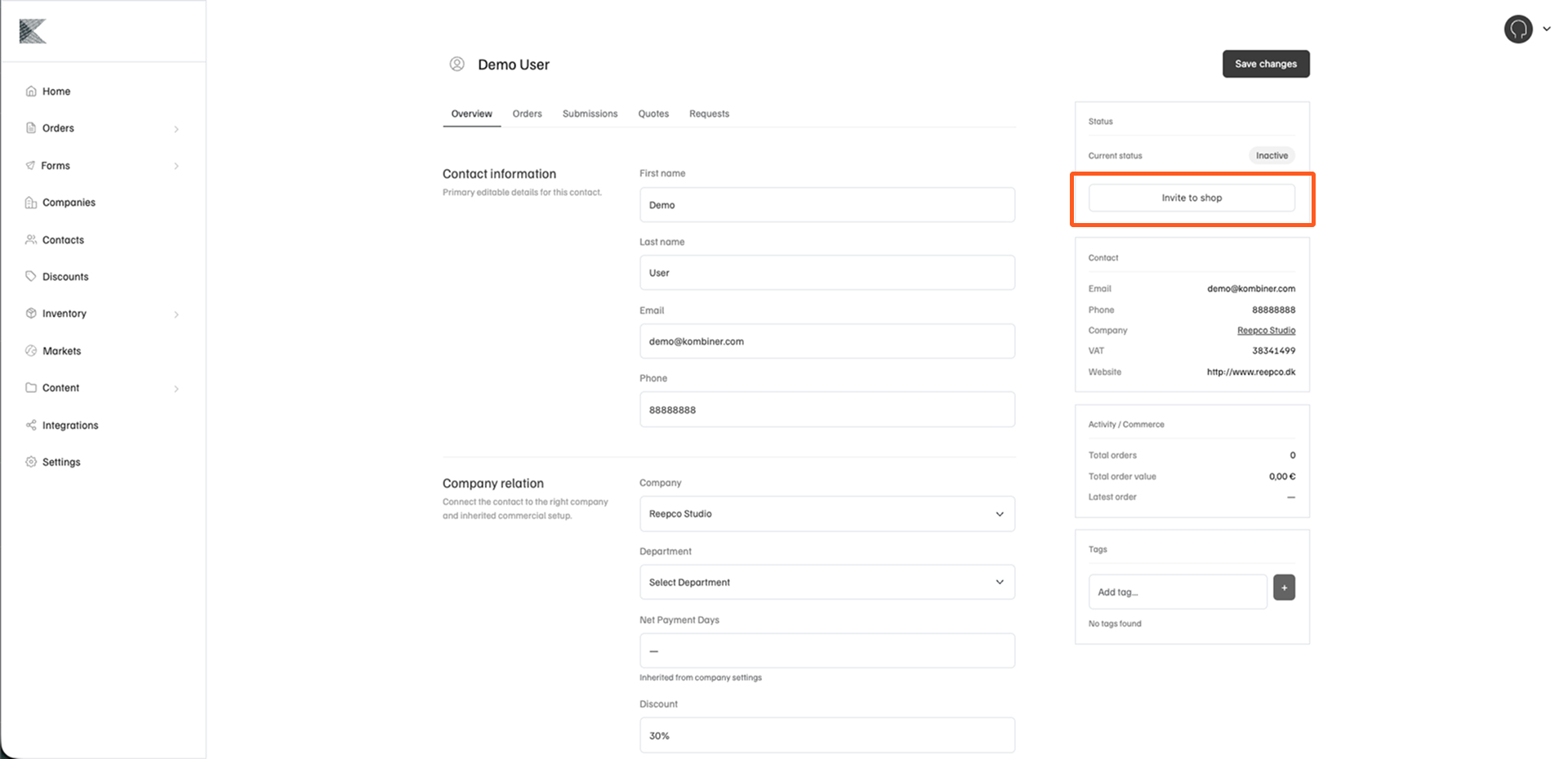
The invited user will receive an activation email.
Once the user has activted their account, they will gain access to the shop.
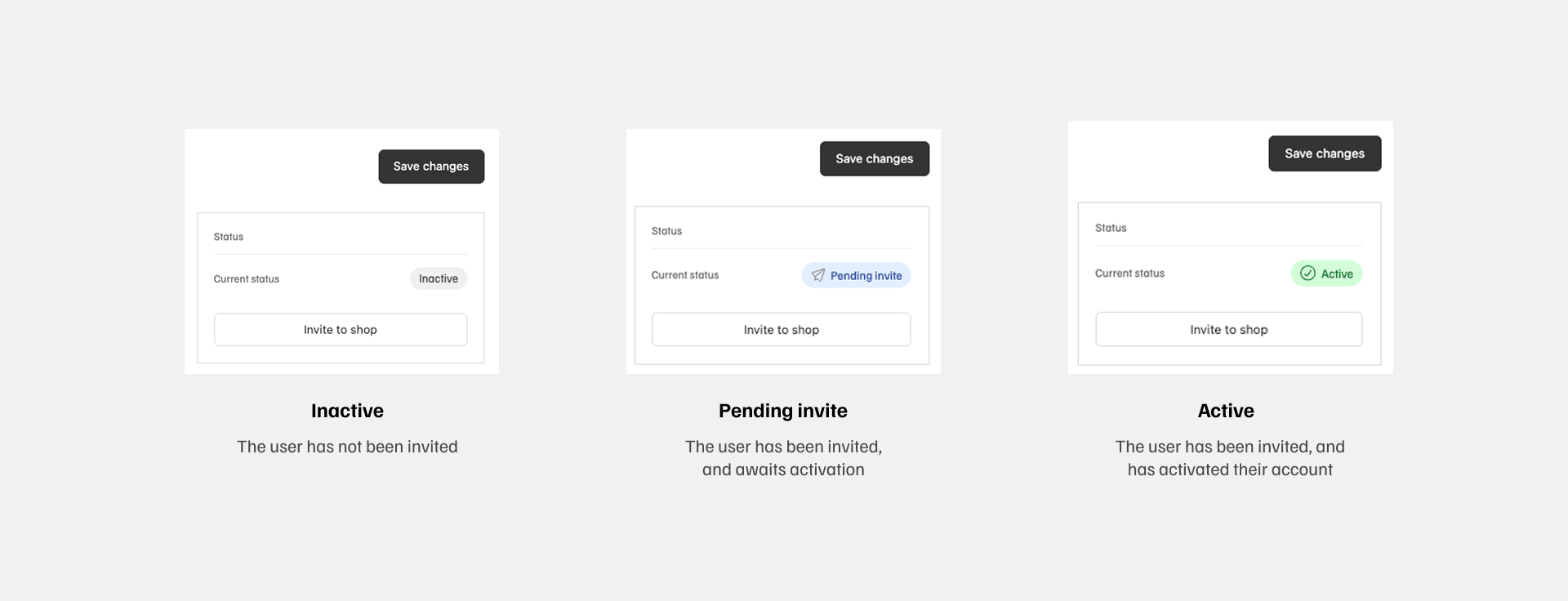
Contact account statusses
- Inactive: The user has not yet been invited
- Pending invite: The user has been invited, and awaits activation
- Active: The user has been invited, and has activated their account
What happens behind the scenes
- The contact is linked to the selected company.
- A secure user account is created or activated.
- Access permissions are applied based on your setup.
This ensures that the partner only sees data related to their assigned company.
Important notes
- The email address must be correct before sending the invitation.
- A contact can only belong to one company at a time.
- Access can be revoked later if needed.
Common questions
Can I resend an invitation?
Yes. You can resend the invitation from the contact’s profile.
What if the customer cannot access the shop?
Verify that the contact is assigned to the correct company and that the invitation has been accepted.